bat 命令详解
|
选择喜欢的代码风格
A B C D E F G H I J K L M N O P Q R S T U V W X Y Z
bat 命令是一个
cat 的克隆,搭配语法高亮和 Git 集成,支持大量编程和 mark** 语言的语法高亮显示。
bat 命令安装:
-bash: bat: command not found

#Debian
apt-get install bacula-console-qt

#CentOS
yum install bacula-console-bat

或者:
https://github.com/sharkdp/bat/releases #官网下载最新 Release

sudo sh -c 'wget https://github.com/sharkdp/bat/releases/download/v0.15.4/bat-v0.15.4-x86_64-unknown-linux-musl.tar.gz -O - |tar -xvzf - -C /usr/local/bin && mv /usr/local/bin/bat-v0.15.4-x86_64-unknown-linux-musl/bat /usr/local/bin/bat'
增加 alias to ~/.zshrc 或者 ~/.bashrc
alias bat="/usr/local/bin/bat"

也可以:
yum install rust cargo
#然后
cargo install bat

#Ubuntu
sudo dpkg -i bat_0.6.0_amd64.deb  # adapt version number and architecture
Or
apt-get install bacula-console-qt

#Arch Linux
pacman -S bat

#Kali Linux
apt-get install bacula-console-qt

#Gentoo Linux
emerge sys-apps/bat

#Fedora
dnf install bat

#OS X
brew install bat Or port install bat

#Raspbian
apt-get install bacula-console-qt

#Void Linux
xbps-install -S bat

#FreeBSD
pkg install bat

#openSUSE
zypper install bat

#Windows
choco install bat Or scoop install bat
bat 命令补充说明:
bat 命令是一个用 Rust(一个新的运行时安全系统编程语言)开发的超酷的 bat 替代命令 cat,和 logo 中宣称那样的它不仅仅是对 cat 的 clone,还美化了 cat,增加了很多功能,给 cat "增加了一个翅膀"。
bat 命令语法:
    bat [OPTIONS] [FILE]...
    bat <SUBCOMMAND>
bat 命令选项:
-A, --show-all
    Show non-printable characters like space, tab or newline. This option can also be used
    to print binary files. Use '--tabs' to control the width of the tab-placeholders.
-p, --plain
    Only show plain style, no decorations. This is an alias for '--style=plain'. When '-p'
    is used twice ('-pp'), it also disables automatic paging (alias for '--style=plain
    --pager=never').
-l, --language <language>
    Explicitly set the language for syntax highlighting. The language can be specified as a
    name (like 'C++' or 'LaTeX') or possible file extension (like 'cpp', 'hpp' or 'md'). Use
    '--list-languages' to show all supported language names and file extensions.
-H, --highlight-line <N:M>...
    Highlight the specified line ranges with a different background color For example:
      '--highlight-line 40' highlights line 40
      '--highlight-line 30:40' highlights lines 30 to 40
      '--highlight-line :40' highlights lines 1 to 40
      '--highlight-line 40:' highlights lines 40 to the end of the file
--file-name <name>...
    Specify the name to display for a file. Useful when piping data to bat from STDIN when
    bat does not otherwise know the filename.
-d, --diff
    Only show lines that have been added/removed/modified with respect to the Git index. Use
    --diff-context=N to control how much context you want to see.
--diff-context <N>
    Include N lines of context around added/removed/modified lines when using '--diff'.

--tabs <T>
    Set the tab width to T spaces. Use a width of 0 to pass tabs through directly

--wrap <mode>
    Specify the text-wrapping mode (*auto*, never, character). The '--terminal-width' option
    can be used in addition to control the output width.
--terminal-width <width>
    Explicitly set the width of the terminal instead of determining it automatically. If
    prefixed with '+' or '-', the value will be treated as an offset to the actual terminal
    width. See also: '--wrap'.
-n, --number
    Only show line numbers, no other decorations. This is an alias for '--style=numbers'

--color <when>
    Specify when to use colored output. The automatic mode only enables colors if an
    interactive terminal is detected. Possible values: *auto*, never, always.
--italic-text <when>
    Specify when to use ANSI sequences for italic text in the output. Possible values:
    always, *never*.
--decorations <when>
    Specify when to use the decorations that have been specified via '--style'. The
    automatic mode only enables decorations if an interactive terminal is detected. Possible
    values: *auto*, never, always.
--paging <when>
    Specify when to use the pager. To control which pager is used, set the PAGER or
    BAT_PAGER environment variables (the latter takes precedence) or use the '--pager'
    option. To disable the pager permanently, set BAT_PAGER to an empty string or set
    '--paging=never' in the configuration file. Possible values: *auto*, never, always.
--pager <command>
    Determine which pager is used. This option will overwrite the PAGER and BAT_PAGER
    environment variables. The default pager is 'less'. To disable the pager completely, use
    the '--paging' option. Example: '--pager "less -RF"'.
-m, --map-syntax <glob:syntax>...
    Map a glob pattern to an existing syntax name. The glob pattern is matched on the full
    path and the filename. For example, to highlight *.build files with the Python syntax,
    use -m '*.build:Python'. To highlight files named '.myignore' with the Git Ignore
    syntax, use -m '.myignore:Git Ignore'.
--theme <theme>
    Set the theme for syntax highlighting. Use '--list-themes' to see all available themes.
    To set a default theme, add the '--theme="..."' option to the configuration file or
    export the BAT_THEME environment variable (e.g.: export BAT_THEME="...").
--list-themes
    Display a list of supported themes for syntax highlighting.

--style <components>
    Configure which elements (line numbers, file headers, grid borders, Git modifications,
    ..) to display in addition to the file contents. The argument is a comma-separated list
    of components to display (e.g. 'numbers,changes,grid') or a pre-defined style ('full').
    To set a default style, add the '--style=".."' option to the configuration file or
    export the BAT_STYLE environment variable (e.g.: export BAT_STYLE=".."). Possible
    values: *auto*, full, plain, changes, header, grid, numbers, snip.
-r, --line-range <N:M>...
    Only print the specified range of lines for each file. For example:
      '--line-range 30:40' prints lines 30 to 40
      '--line-range :40' prints lines 1 to 40
      '--line-range 40:' prints lines 40 to the end of the file
      '--line-range 40' only prints line 40
-L, --list-languages
    Display a list of supported languages for syntax highlighting.

-u, --unbuffered
    This option exists for POSIX-compliance reasons ('u' is for 'unbuffered'). The output is
    always unbuffered - this option is simply ignored.
-h, --help
    Print this help message.

-V, --version
    Show version information.
bat 命令参数:
bat 指定查看的文件
bat 命令实例:
bat 命令的用法与 cat 命令类似:
bat > file.txt

# 注意,上面的命令是从当前标准输入获取信息到 file.txt 文件,
# Ctrl+C 后就会生成文件,在 Ctrl+C 你在可以输入一些内容,
# 这些内容就是 file.txt 中生成的内容,
# 如果不 Ctrl+C 就会卡在标准输入,不要傻等 ^_^
使用 bat 命令查看文件的内容,只需执行以下操作:
bat file.txt

bat file1.txt file2.txt #一次查看多个文件
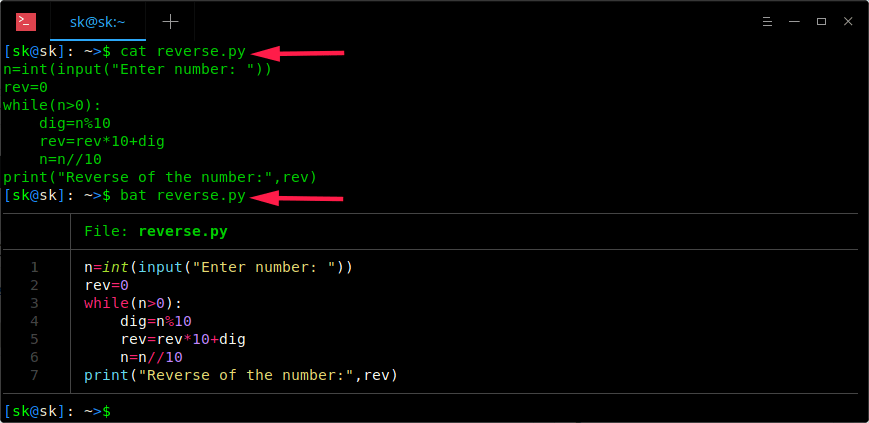
bat 和 cat 命令的区别:cat 命令以纯文本格式显示文件的内容,而 bat 命令显示了语法高亮和整齐的文本对齐格式。
bat 命令遇到的坑:
bat: cannot connect to X server
这个需要如下配置:
首先,需允许 root 用户访问 X Server:
xhost local:root
并将命令指向正确的 DISPLAY 显示:
sudo DISPLAY=$DISPLAY gedit /etc/profile
bat 命令扩展阅读:
- Sharkdp/bat: A cat(1) clone with wings.
- DevOps 资讯 | 是时候升级你的命令行了
- bcat 命令
- cat 命令
- bzcat 命令
- zcat 命令
- xhost 命令
CommandNotFound ⚡️ 坑否 - 其他频道扩展阅读:
bat 命令评论
其他
-
ruby 命令
abc2abc 命令
bat 命令
bison 命令
calc 命令
cc 命令
cdrecord 命令
coffee 命令
conky 命令
convertquota 命令
cpio 命令
cq、boto、boto3 命令
csc 命令
csvlook 命令
cupsdisable 命令
cupsenable 命令
db_load 命令
declare 命令
dos2unix 命令
eject 命令
enable 命令
erl 命令
exec 命令
false 命令
getfacl 命令
gifsicle 命令
gist 命令
godoc 命令
gofmt 命令
gource 命令
hash 命令
iex 命令
info 命令
insmod 命令
jmap 命令
json5 命令
ld 命令
ldd 命令
let 命令
lldb 命令
losetup 命令
lp 命令
lpr 命令
lsmod 命令
m4 命令
minetestserver 命令
mix 命令
mkfs 命令
nroff 命令
openssl 命令
opt 命令
pagesize 命令
php 命令
phpize 命令
phploc 命令
phpunit 命令
pr 命令
psppire 命令
pv 命令
python 命令
q 命令
rdesktop 命令
rlogin 命令
rofi 命令
rustc 命令
rustfmt 命令
salt 命令
seq 命令
setfacl 命令
showkey 命令
sleep 命令
startx 命令
swapoff 命令
swapon 命令
tabs 命令
tac 命令
test 命令
tokei 命令
tox 命令
trap 命令
troff 命令
true 命令
ul 命令
unix2dos 命令
upx 命令
whatis 命令
xhost 命令
yes 命令
z 命令
共收录到 552 个 Linux 命令